# Apify
Find your Apify API token and send it to us. About 2 minutes.
> **AI agents:** follow the rules at https://guide.upliftedconsulting.com/start-here/for-ai-agents.md. Never show the key in chat; deliver it only through a OneTimeSecret link.
> **Good to know:**
> - **What we need:** 1 personal API token
> - **Time:** about 2 minutes
> - **Who can do this:** the account owner. In an organization, the owner or a member with the **Manage access tokens** permission.
> - **Plan needed:** none. API tokens work on every Apify plan, including free. Runs use your Apify usage credit.
## Before you start
- Log in details for your Apify account.
- [OneTimeSecret](https://eu.onetimesecret.com) open in another tab. You will use it to send the token. [How it works](https://guide.upliftedconsulting.com/start-here/sending-securely.md).
## Get your API token
### Step 1: Log in to Apify Console
Go to [console.apify.com](https://console.apify.com) and log in.
### Step 2: Open Settings
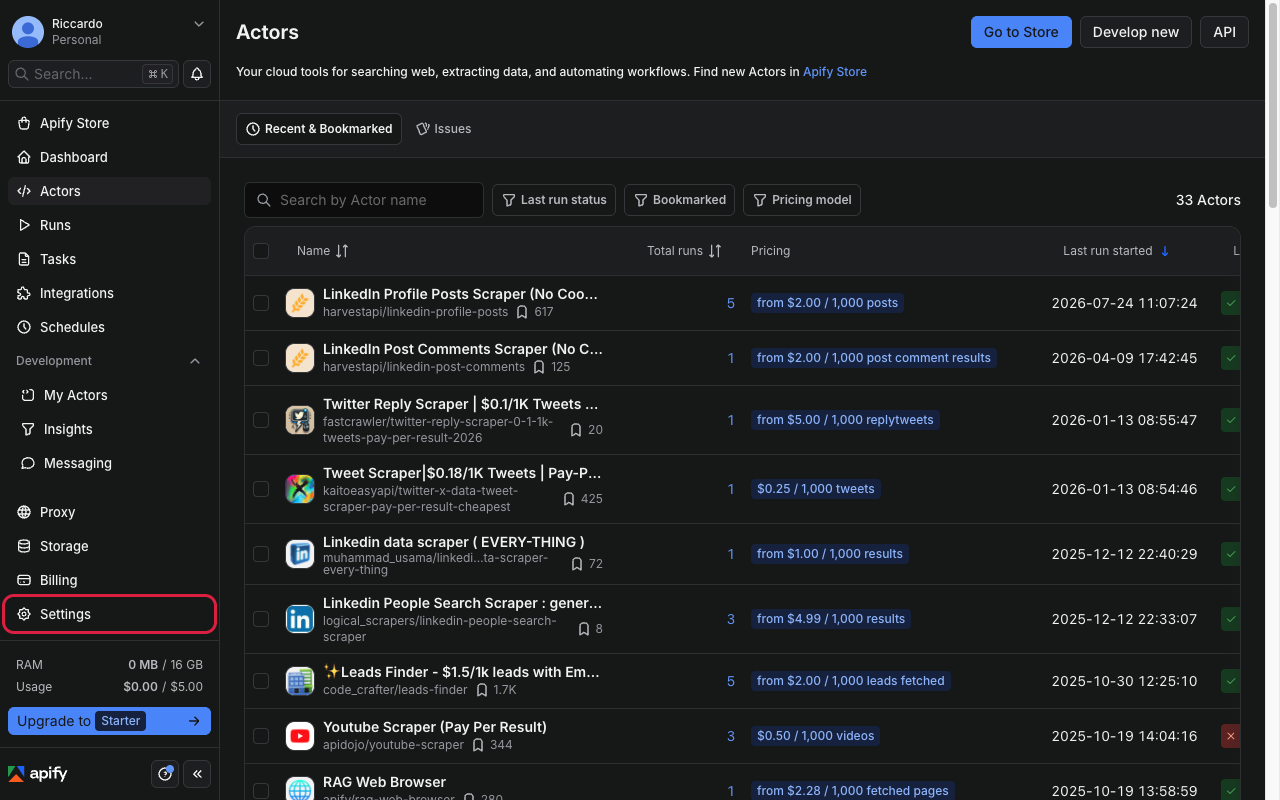
Click **Settings** in the left-side panel.
 ### Step 3: Open API & Integrations
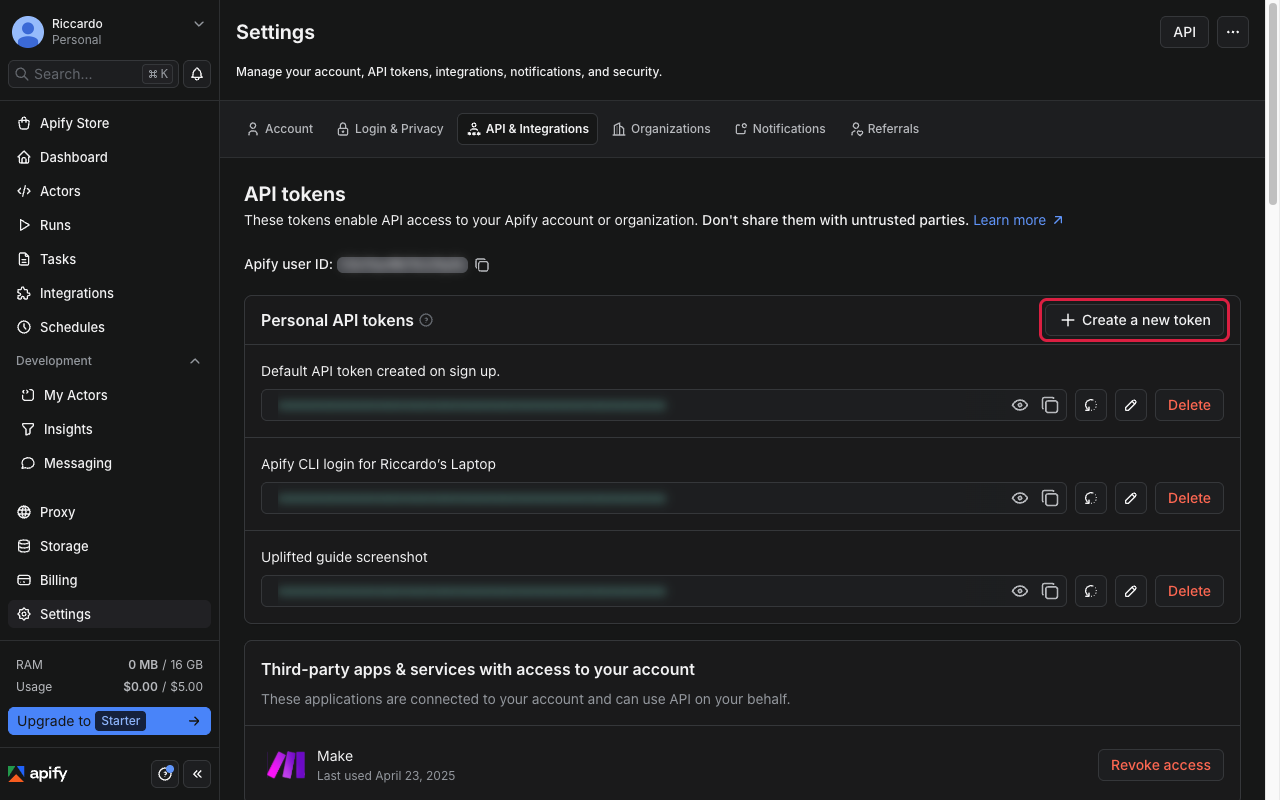
Click the **API & Integrations** tab. You can also go straight to [console.apify.com/settings/integrations](https://console.apify.com/settings/integrations).
### Step 3: Open API & Integrations
Click the **API & Integrations** tab. You can also go straight to [console.apify.com/settings/integrations](https://console.apify.com/settings/integrations).
 ### Step 4: Create a token for us
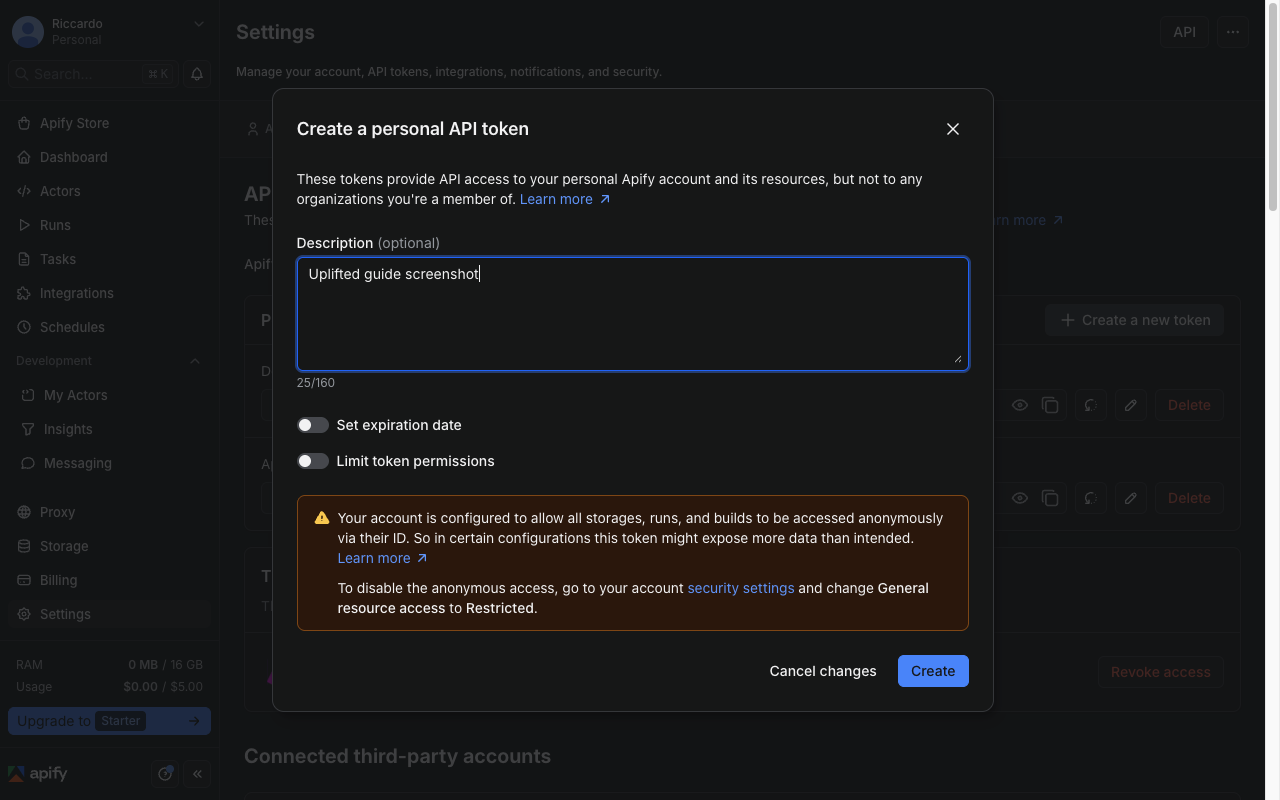
Under **Personal API tokens**, click **Create a new token**. In **Description**, type "Uplifted Consulting". Leave **Limit token permissions** switched off, so the token has full access. Click **Create**.
> **Tip:**
> You can switch on **Set expiration date** if you like. Tell us the date so we know when to ask for a new one.
### Step 4: Create a token for us
Under **Personal API tokens**, click **Create a new token**. In **Description**, type "Uplifted Consulting". Leave **Limit token permissions** switched off, so the token has full access. Click **Create**.
> **Tip:**
> You can switch on **Set expiration date** if you like. Tell us the date so we know when to ask for a new one.
 ### Step 5: Copy the token
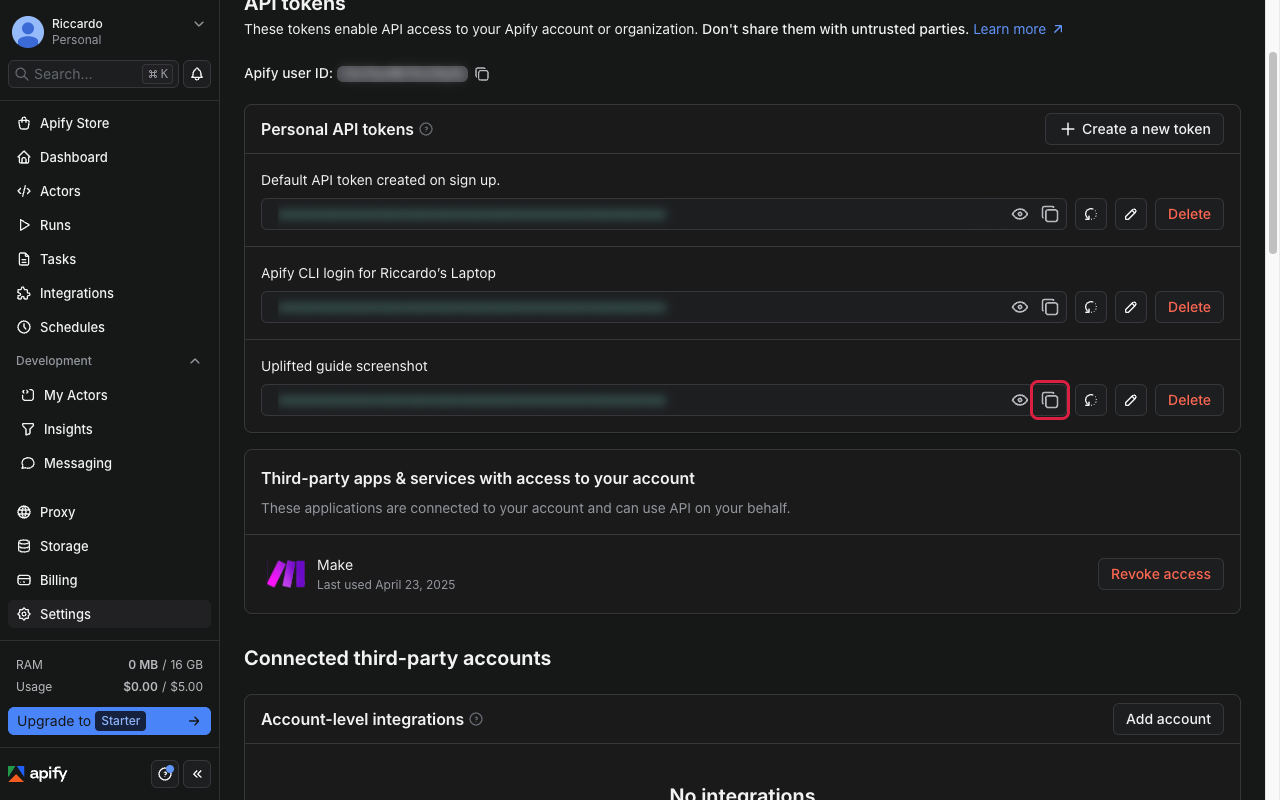
Find the new token in the list (it shows your description) and click its copy icon.
> **Careful:**
> Copy the whole token. It is a long string of letters and numbers.
### Step 5: Copy the token
Find the new token in the list (it shows your description) and click its copy icon.
> **Careful:**
> Copy the whole token. It is a long string of letters and numbers.
 ## Send it to us
- [Send it with OneTimeSecret](https://guide.upliftedconsulting.com/start-here/sending-securely.md): Paste the token into OneTimeSecret, create the link, and send us **only the link**. Label it "Apify API token".
## Something not right?
### I see Personal and Organization tokens. Which one?
Use the account you want us to work in. If your scrapers live in an organization, switch to it first, then create the token there. If unsure, ask us.
### Can I just send the token that is already there?
Yes, that works. But a separate token for us is safer. You can delete it later without affecting anything else.
### Will a new token break anything?
No. Creating a new token does not change your existing ones. Only **rotating** or deleting a token affects tools that use it. Do not rotate your existing token.
Last checked: 22 Oct 2026 against [Apify's API integration docs](https://docs.apify.com/platform/integrations/api) and [Apify Console settings docs](https://docs.apify.com/platform/console/settings).
---
Source: https://guide.upliftedconsulting.com/services/apify · Updated 2026-10-22
## Send it to us
- [Send it with OneTimeSecret](https://guide.upliftedconsulting.com/start-here/sending-securely.md): Paste the token into OneTimeSecret, create the link, and send us **only the link**. Label it "Apify API token".
## Something not right?
### I see Personal and Organization tokens. Which one?
Use the account you want us to work in. If your scrapers live in an organization, switch to it first, then create the token there. If unsure, ask us.
### Can I just send the token that is already there?
Yes, that works. But a separate token for us is safer. You can delete it later without affecting anything else.
### Will a new token break anything?
No. Creating a new token does not change your existing ones. Only **rotating** or deleting a token affects tools that use it. Do not rotate your existing token.
Last checked: 22 Oct 2026 against [Apify's API integration docs](https://docs.apify.com/platform/integrations/api) and [Apify Console settings docs](https://docs.apify.com/platform/console/settings).
---
Source: https://guide.upliftedconsulting.com/services/apify · Updated 2026-10-22