
- What we need
- 1 API key
- Time
- about 2 minutes
- Who can do this
- the account owner
- Plan needed
- any MillionVerifier account with credits. Each email we check uses your credits.
Before you start
- Log in details for your MillionVerifier account.
- OneTimeSecret open in another tab. You will use it to send the key. How it works.
Get your API key
Log in to MillionVerifier
Go to app.millionverifier.com and log in.
Open Account settings
Click your profile in the top-right corner. Then click Account settings.
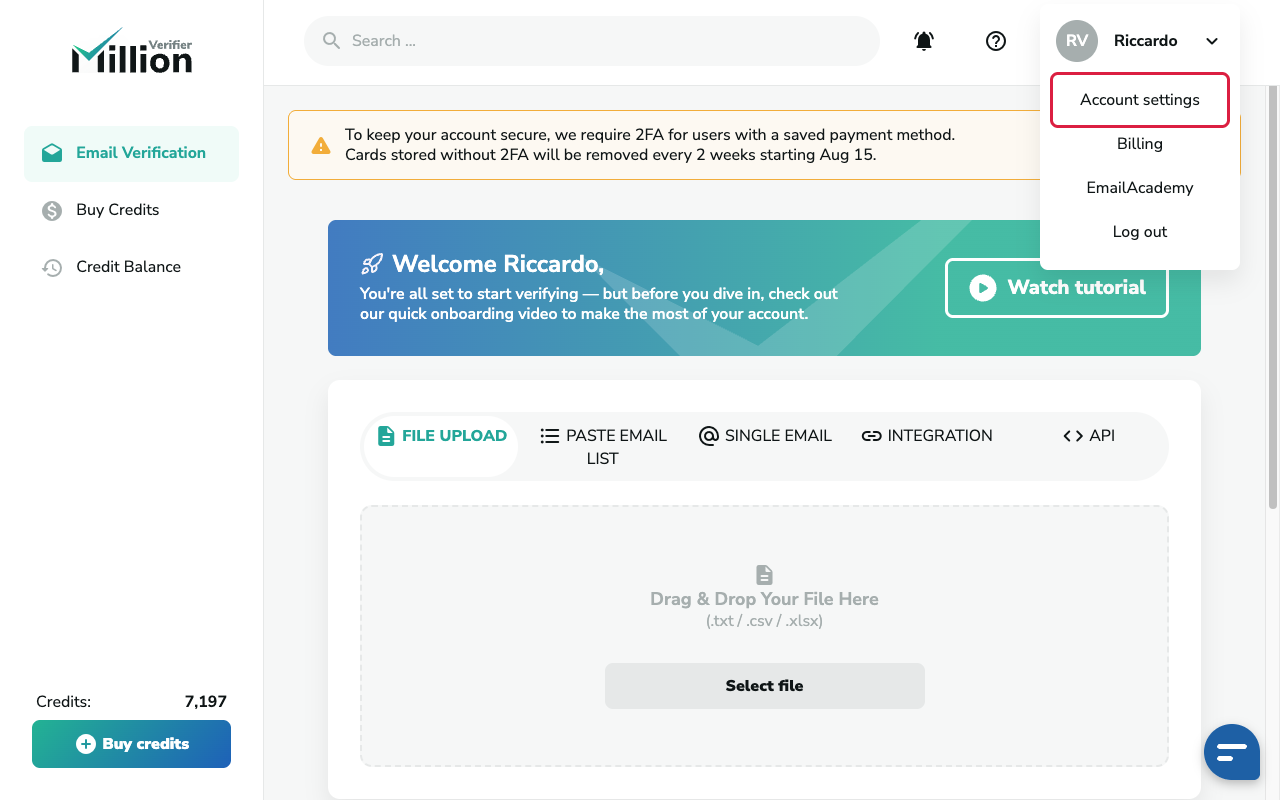
Profile menu top-right with Account settings highlighted Go to API KEYS
Click API KEYS in the menu bar.
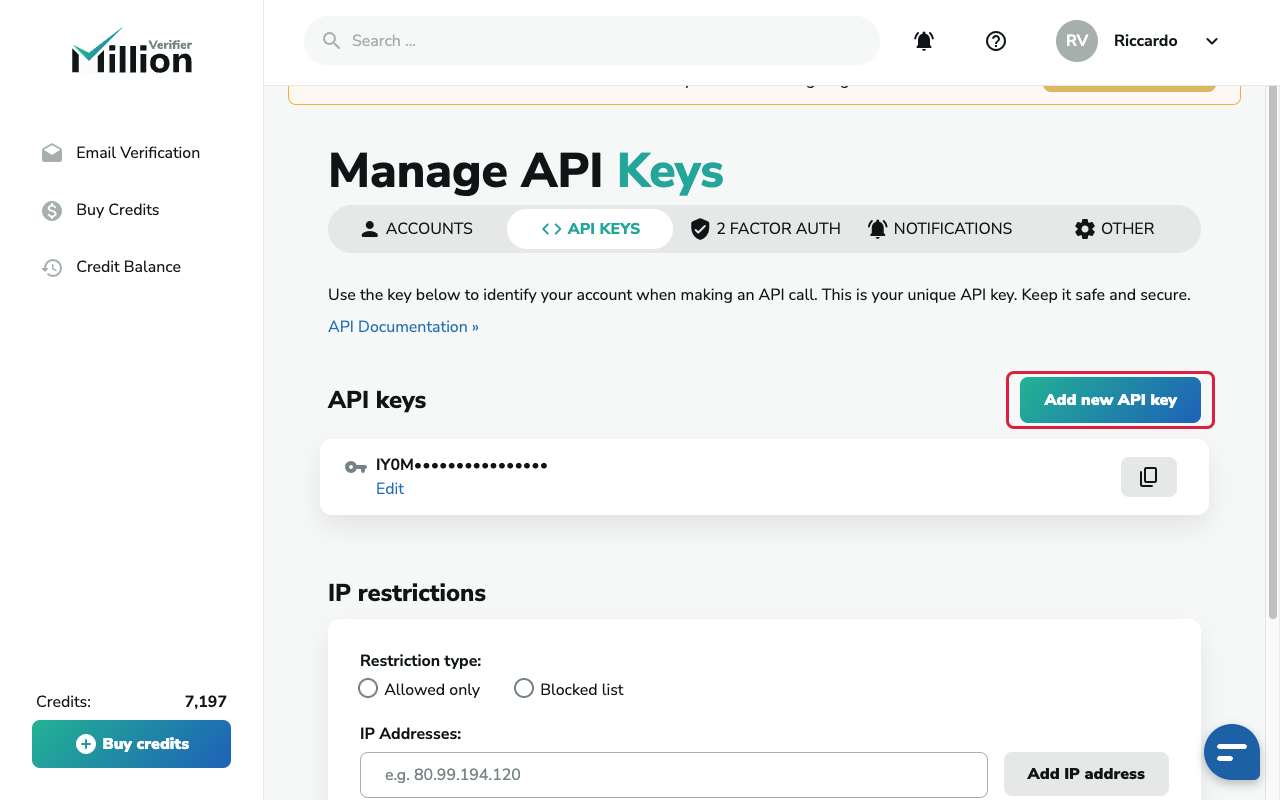
Account settings with API KEYS tab selected and key list Add a new key
Click Add new API key (top right of the list). Then click Add in the pop-up. The new key appears at the bottom of the list.
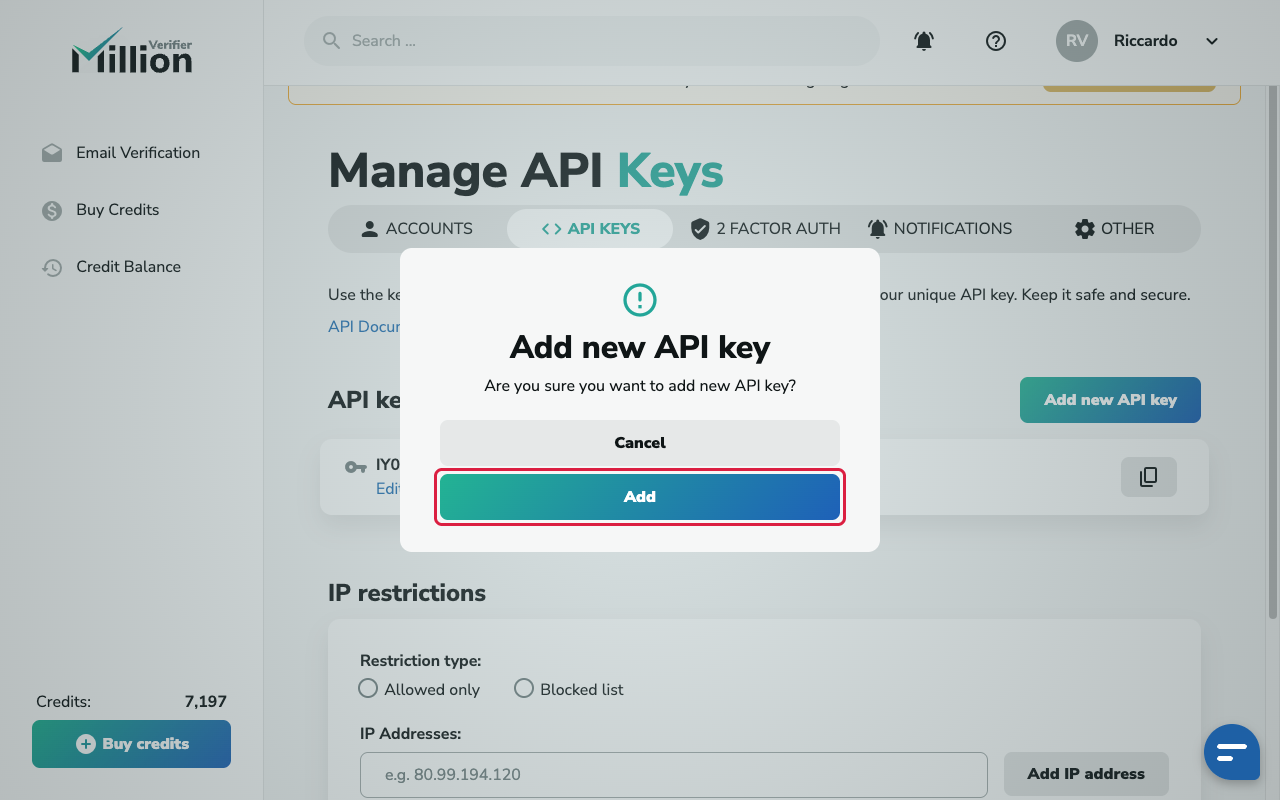
Add new API Key button and confirmation pop-up Check it is active and copy it
Make sure the Active slider next to the new key is green. Then click the copy icon on the right of that key.
Careful
Copy the whole key. It is a long string of letters and numbers.
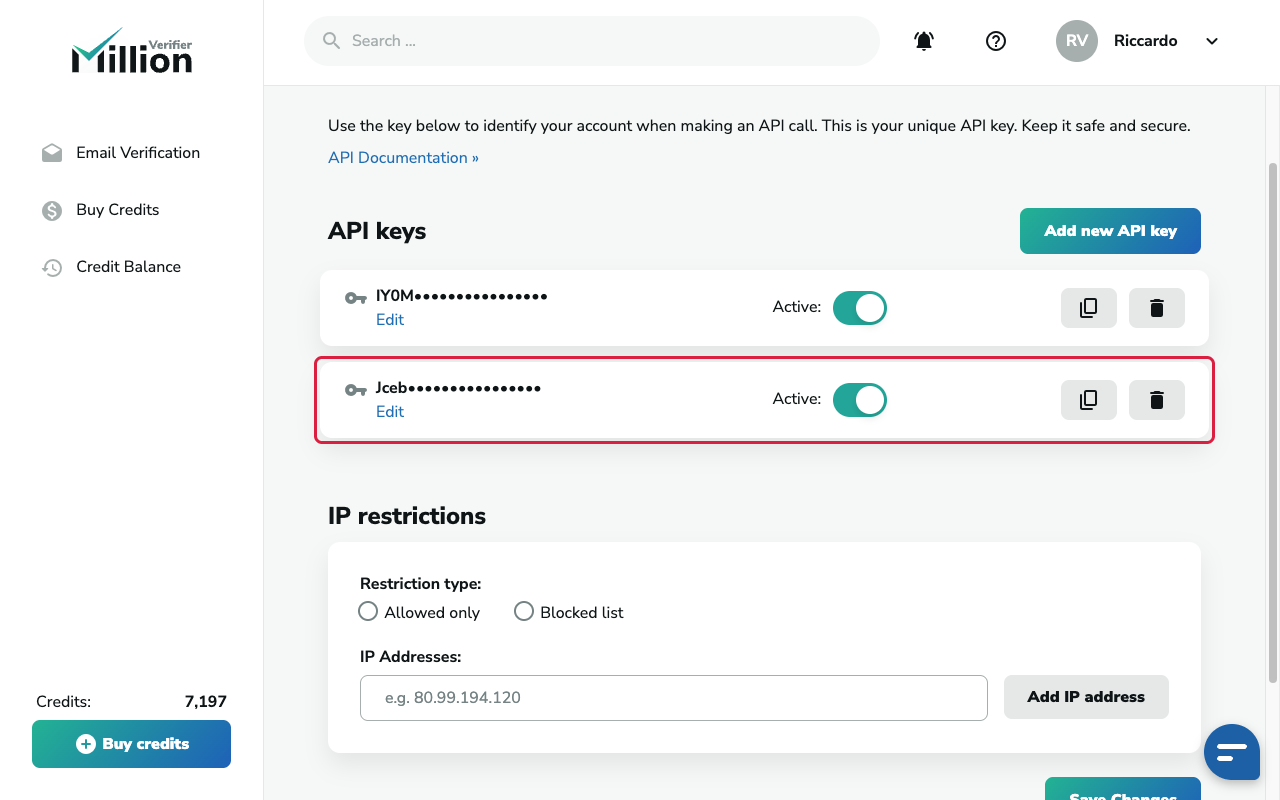
New key with green Active slider, key blurred
Send it to us
Send it with OneTimeSecret
Paste the key into OneTimeSecret, create the link, and send us only the link. Label it "MillionVerifier API key".
Something not right?
The key does not work
Check the Active slider next to the key. If it is grey, click it, then click Enable.
Will the key use up my credits?
Yes. Every email we verify with the key uses credits from your account. Tell us if you want us to stay under a limit.
Will a new key break anything?
No. You can have as many keys as you want. A new key does not stop your other keys from working. Just do not disable keys that other tools use.
Last checked: 22 Oct 2026 against MillionVerifier's API keys help article.
Doing several tools? Tick them all on Your tools and get one prompt or checklist.